AI crawler access tester for robots.txt
See which AI crawlers your live robots.txt allows, which it blocks, and the rule that decides each case. The check also reads your homepage's noindex signals, which are a separate setting.
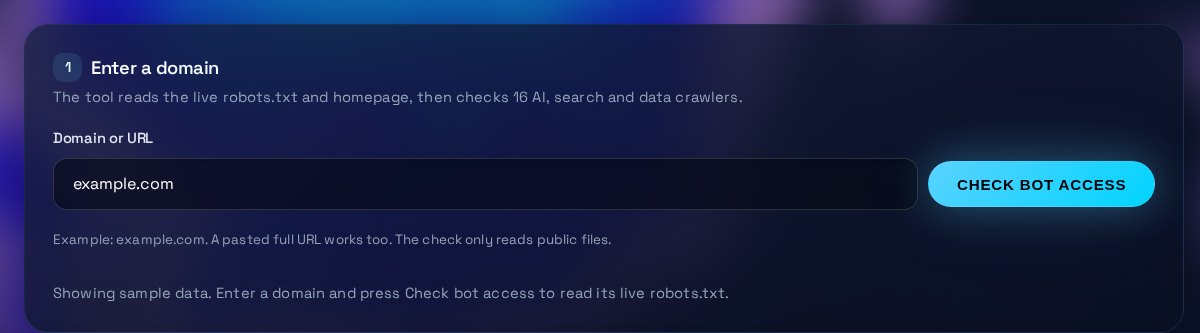
Enter a domain
The tool reads the live robots.txt and homepage, then checks 16 AI, search and data crawlers.
Example: example.com. A pasted full URL works too. The check only reads public files.
Bot-by-bot access
Loading sample data...
What to change
| Bot | Access | Matched rule | Group |
|---|
Google-Extended controls use of your content for AI training. It does not control Googlebot, which indexes pages for Google Search.
Homepage indexing
Nothing checked yet. Press Check bot access to read the homepage headers.
| Signal | Result | Detail |
|---|
The robots.txt that was read
Compare this with the file on your server, or copy it into a change request.
How to use the AI Bot Access Tester
Read the sample first to learn the table, then enter your domain to test the live file. The tool only reads your site and changes nothing.
What the tool checks
The tool downloads your robots.txt from the root of the domain, and your homepage, the way a crawler would. For each of sixteen crawlers it finds the group that applies: the group named for that bot, or the * group if the bot has none. It tests the homepage path, and any path the homepage redirects to. Each bot is marked Allowed, Partly blocked or Blocked, and the matched rule is shown so you can see which line decided it.
How to read the result
Allowed means nothing in the bot's group blocks the homepage. Partly blocked means the homepage is open but a Disallow rule covers other paths, such as /admin/. Blocked means a rule covers the homepage. Google-Extended controls whether Google may use your content for AI training. It does not affect Googlebot, which indexes pages for Search. The homepage table is separate: a noindex setting keeps a page out of search results whatever the crawler rules say.
What to change, and in what order
Decide first which bots you want to block, because that is a business choice. Then fix accidental blocks, which usually come from a broad Disallow: / under the * group that catches bots you never meant to stop. Give a bot its own User-agent group with the paths it may read. Remove noindex from the homepage if you want search engines to list it. After each change, upload the file, wait for caches to refresh and check again.
When to get help
Ask a developer or your web host if the robots.txt returns an error page, a server error or a redirect to a login page, because crawlers treat a server error as a full block. Get help before you block or unblock several crawlers on a busy site, and when a rule is unclear. A file with CDN or bot-verification rules may also need a review of the server setup, not only the text file.
Three steps
The short version, if you want to get straight to your answer.
- Enter your domain. Type the domain. The tool reads https://yourdomain.com/robots.txt the way a crawler does.
- Read each bot. Every AI crawler shows Allowed, Partly blocked or Blocked, with the rule that decided it and the group it came from.
- Check indexing. The homepage's X-Robots-Tag header and meta robots tag are shown, so a noindex setting is not missed.
Tips for accurate results
Small input choices change the answer. These are the ones that matter most.
- Check the live domain, not a staging copy. Staging hosts often serve a blanket Disallow: / that you do not want in production.
- Use a named User-agent group to allow one bot. A named group overrides the * group for that bot, so the * rules no longer apply to it.
- robots.txt is a request, not enforcement. Well-behaved crawlers obey it, but some scrapers do not, so use a firewall or CDN rule for a hard block.
- Google-Extended only controls AI training use. Keep Googlebot allowed if you want to stay in Google Search.
- Re-check after every deploy. Plugins and CDNs can rewrite robots.txt, so the file you edited may not be the one crawlers read.
Questions about the AI Bot Access Tester
Answers to the questions people ask most often.
Does blocking GPTBot also block ChatGPT search?
Not necessarily. OpenAI publishes separate crawler names: GPTBot, OAI-SearchBot for search, and ChatGPT-User for fetches a user triggers. Each one has its own row in the table, so block or allow each name on purpose.
What does Google-Extended control?
Google-Extended controls whether content Google crawls may be used to train its AI models. It does not control Googlebot, so blocking it does not remove your pages from Google Search.
Why is a bot shown as Partly blocked?
The bot may be allowed on the homepage but disallowed on other paths, such as /admin/. The matched rule shows which path is affected, and the fix list says what to change.
What if I have no robots.txt?
A missing file (HTTP 404) means there are no crawl restrictions, so every bot is Allowed. A server error (HTTP 5xx) is different: crawlers treat it as a full block until the file loads.
Does robots.txt remove pages from Google or AI answers?
Not by itself. robots.txt stops crawling, but a blocked URL can still appear in results if other sites link to it. To keep a page out of results, use a noindex tag and leave the page crawlable so the tag can be read.
More free tools
Other tools from TRIZAN you might use next.
 AI and web visibilityllms.txt Checker & GeneratorValidate a site's llms.txt against the format rules, then generate a valid file for your own pages.Open the tool
 AI and web visibilitySocial Preview & Favicon ToolPreview how a link looks on LinkedIn, X, Slack and iMessage, then make favicon sizes and favicon.ico.Open the tool
 Email and securityEmail DNS & SSL CheckerCheck a domain's SPF, DMARC, DKIM, MX and SSL certificate, with a plain-English fix for each gap.Open the tool