Clean a CSV lead list
Drop in a CSV file or paste the rows. The tool trims cells, checks emails, tidies North American phone numbers and removes duplicate and empty rows. Download a clean file for your CRM or email tool.
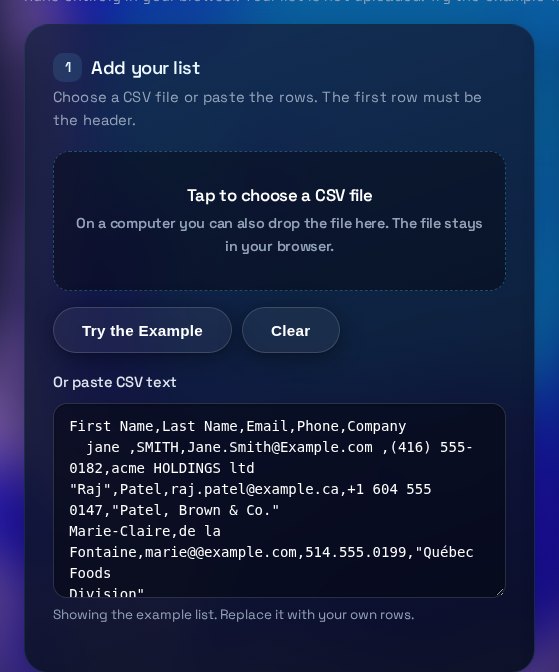
Runs entirely in your browser. Your list is not uploaded. Try the example first, then use your own file.
Add your list
Choose a CSV file or paste the rows. The first row must be the header.
Choose clean-up steps
Steps are ticked by default. The result updates as you change them.
Result
Check the counts, preview and flags, then download or copy the clean rows.
Preview (first 20 cleaned rows)
Flags
How to use the CSV Lead List Cleaner
Each part of the page does one job. Read the steps in order, check the flags, and only then download the file you will import.
What each input does
Use the drop zone to choose a .csv file, or paste rows into the text box. The first row must be the header, with names such as Email, Phone, First name or Company, because the tool uses those names to find the right columns. The clean-up steps are ticked by default. Untick any step you do not want. Changes apply straight away, so you can compare options before you download.
How to read the result
The counters show rows in, rows out, duplicates removed, invalid emails found, phone numbers changed and empty rows removed. The mapping line says which columns were treated as email, phone, name or company. The preview shows the first 20 cleaned rows. The flags list names each row that was removed, changed or needs a check, using its row number in your original file.
Common mistakes
Opening the file in Excel and saving it again as a normal CSV can change phone numbers and dates, so keep your original. Excel and Numbers files are not read directly, so save them as CSV UTF-8 first. Invalid emails are kept unless you choose to remove them. Title Case can change names that should keep their capitals, so check the preview before you import.
What to do next
Read the flags, check the preview, then download the clean file. Import a small test batch into your CRM or email tool before you load the whole list. Keep the original file in case you need to compare. Check your own rules on consent before you contact the people on the list.
Three steps
The short version, if you want to get straight to your answer.
- Add your list. Drop a CSV file or paste the rows. The first row must be the header.
- Choose the clean-up steps. Tick the options you want. The counts, flags and preview update as you change them.
- Download the result. Get a UTF-8 CSV with a byte-order mark, so Excel opens accented names correctly.
Tips for accurate results
Small input choices change the answer. These are the ones that matter most.
- Export the list as UTF-8 CSV from your CRM. That keeps accented names such as Québec or José intact.
- Keep the header row. Without a header the tool has to guess columns from the values, and it says so in the mapping line.
- Clean the list before you import it. Duplicates removed here never reach your CRM, so you do not have to merge records later.
- Turn on removal of invalid emails only after you have read the flags. Removed rows are not in the download, so the flags are your only record.
- When there is an email column, two rows with the same email count as duplicates even if the names differ. Check those rows if the two people are really different.
Questions about the CSV Lead List Cleaner
Answers to the questions people ask most often.
Will it upload my file?
No. The file is read and cleaned in your browser, and the download is created on your device. Nothing is sent to TRIZAN or to any other server.
Will it work with Excel files?
Not directly. The tool reads .csv files and pasted text. In Excel, choose File, Save As, then CSV UTF-8, and load that file. The tool rejects .xlsx files with a message rather than guessing what they contain.
How are duplicates found?
If the list has an email column, rows with the same email (ignoring capitals and spaces) are duplicates, and only the first is kept. If there is no email column, rows that are identical after cleaning are removed.
Which phone numbers are changed?
North American numbers with 10 digits, or 11 digits starting with 1, become (XXX) XXX-XXXX. Other formats, such as numbers with extensions or international numbers, are left as they are and flagged.
Why do accented names display correctly in Excel?
The download starts with a UTF-8 byte-order mark, which tells Excel the file is UTF-8. A file saved in another encoding may still need an import step.
More free tools
Other tools from TRIZAN you might use next.
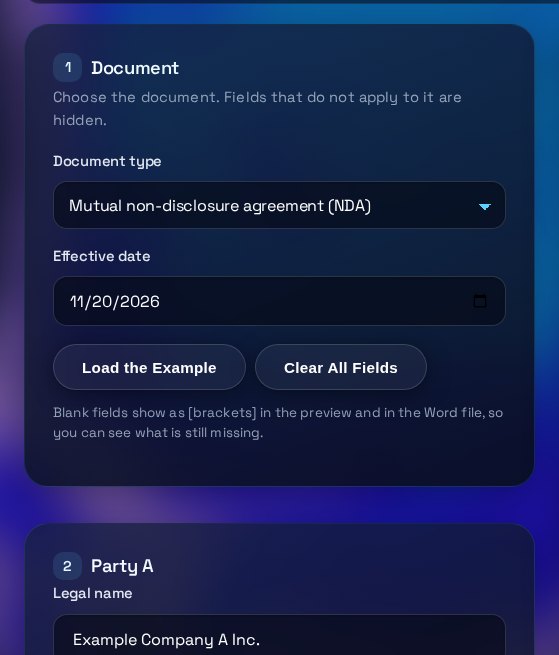 Operations and documentsNDA & LOI Document BuilderFill in a form to get a plain-English NDA or letter of intent, preview it, and download a Word file.Open the tool
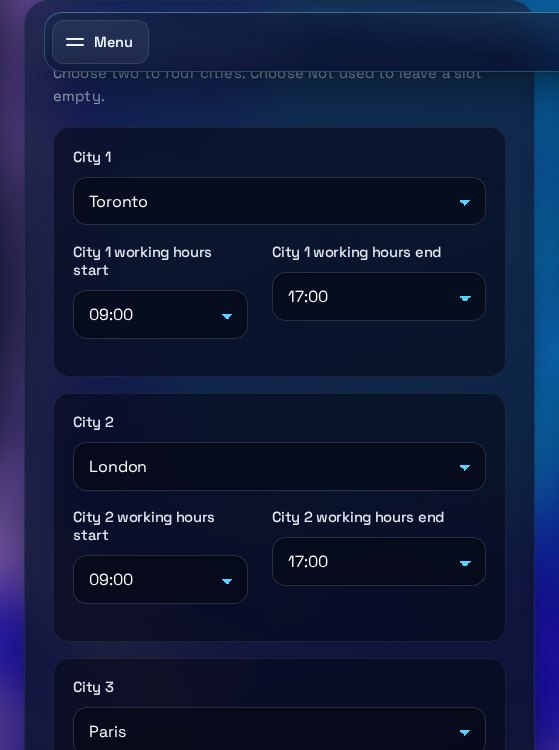 Operations and documentsTime Zone Overlap FinderFind shared working hours for up to four time zones, with daylight saving for your date. Copy the time.Open the tool
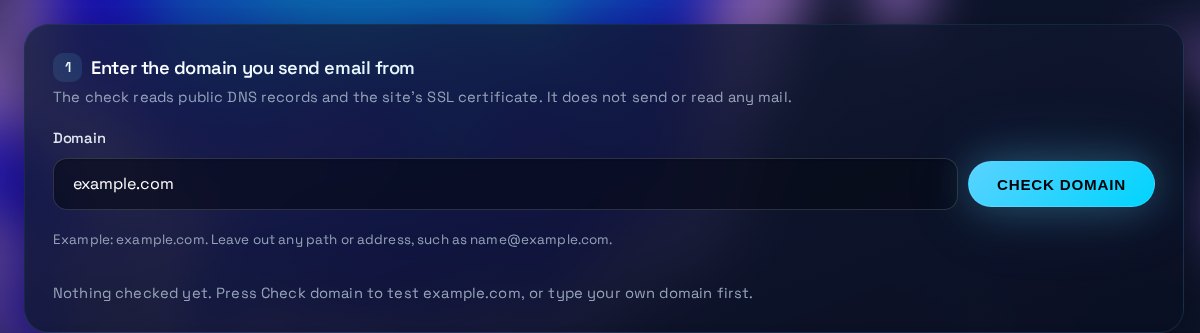 Email and securityEmail DNS & SSL CheckerCheck a domain's SPF, DMARC, DKIM, MX and SSL certificate, with a plain-English fix for each gap.Open the tool